Image to PDF - PDF Converter
BestAppsHubBusiness
0.00.00 Reviews
- Version
- 3.9.0
- Installs
- 1.00M
- Age Rating
- Everyone
Screenshots
Our Review of Image to PDF - PDF Converter
 Analysis by Appyee
I find Image to PDF - PDF Converter most useful when I need to turn a handful of pictures into a document without moving the job to a computer. That sounds simple, but the value is in the small decisions: choosing the image order, deciding how much detail to preserve, and making sure the finished file is practical to send. It is a free business app from BestAppsHub, and its focus is clear: bringing image conversion and PDF editing tasks together on a phone. I would consider it for everyday paperwork, class materials, or personal records, while keeping a few sensible checks in mind before sharing anything important.
When the network becomes part of the task
Creating a PDF from images is a mobile job that can begin in one place and end somewhere else. I might photograph a receipt while out, select it with other pictures later, then send the finished document to a colleague or save it with other work files. That last step is where connectivity matters most. A conversion tool can help prepare the document, but sending it through email, a messaging app, or a cloud destination depends on the network and the services I choose to use.
I would treat the conversion and the handoff as separate stages. First, make the PDF and check that it opens as expected; then choose how to share or store it. If a connection is weak, it is easier to identify whether the problem is with preparing the file or transferring it. I also avoid assuming that a cloud upload has finished just because I tapped a sharing option. A quick check in the destination app can prevent the awkward discovery that a document never arrived.
Useful in the places where paperwork happens
The app makes most sense in mobile situations where documents start as pictures: a signed form, a notice on a wall, a paper handout, or several pages that need to travel together. For a real example, imagine I’m leaving an appointment with a printed instruction sheet and a receipt. I can photograph both, put them in the order I want, and make one file to keep or send. That is more convenient than forwarding two separate images and asking someone else to work out which one comes first.
For the cleanest result, I would take a moment to frame each page carefully before importing it. Keep the whole sheet inside the photo, avoid shadows across small print, and check that the text is readable when viewed on the phone. Converting a blurry image does not restore the missing detail; it only places that image inside a PDF. This is a practical limitation of the source material, not a reason to expect a conversion app to behave like a dedicated scanner.
What to check when something goes wrong
When a document looks wrong, I would troubleshoot the source image before repeating the export. A sideways page, cut-off edge, or hard-to-read line usually points back to how the picture was taken or selected. Reopen the image, confirm the order, and make a small test PDF before building a larger packet. That approach saves time and makes it easier to spot whether the issue is the photo itself or a setting chosen during conversion.
File size is another trade-off worth checking. Higher image quality can be helpful when a page contains fine print or detailed diagrams, while a smaller output may be easier to send over a slow connection. I would compare the result at normal reading size rather than judging it only by how sharp it looks when zoomed far in. If a document is going to be printed or reviewed closely, preserving detail matters more than making the attachment as small as possible.
Keep sensitive files and data use in mind
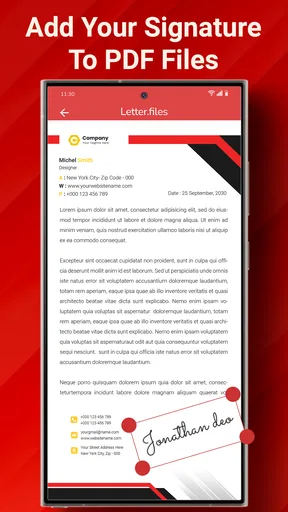
For private paperwork, I would pause before sharing and confirm both the recipient and the destination. The app offers password protection for PDFs, which can be useful as an extra barrier, but I would not treat a password as a substitute for careful handling. Share the password separately when that makes sense, and avoid sending sensitive material through a channel you would not normally trust with it.
Connectivity also affects how much control I have over a file after creation. Sending a PDF to a cloud service may make it easier to find on another device, but it also means relying on that service and its account. If I only need a document for a quick handoff, a direct share may be simpler; if I need an organized record, a known folder is usually better. I choose based on the file’s purpose rather than automatically uploading every conversion.
Getting Started with Ease
First things first, downloading Image to PDF - PDF Converter is a breeze. Available on both Android and iOS, it takes just a few taps to install. Once you’ve got it on your device, you’re welcomed by a clean, intuitive interface that even my tech-averse aunt could navigate.
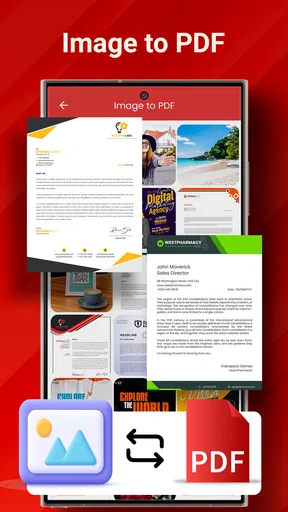
To kick things off, you simply tap on the ‘Create PDF’ button. From there, you can select images from your gallery or snap new ones directly from the app. The drag-and-drop feature is particularly handy, allowing you to arrange the images in whatever order tickles your fancy.
Features that Wow
What I love about this app is its versatility. You’re not just limited to JPEGs; it supports a variety of image formats, which is a huge plus. Once you’ve selected your images, the app offers options to adjust the image quality and paper size. It’s like having a mini photo studio in your pocket!
Another standout feature is the ability to add text. You can insert captions or annotations to your heart’s content. The text editing tools are quite robust, allowing you to play with fonts, sizes, and colors. It’s perfect for adding a professional touch to presentations or just jazzing up your personal photo collections.
Performance and Usability
Now, onto performance. I was pleasantly surprised at how efficient this app is. It converts images to PDF in a flash, without any annoying lags. The resulting PDF files retain excellent image quality, which is crucial for any visual content.
Usability-wise, this app scores high. The user interface is straightforward, with every option clearly labeled. Even if you’re not a tech-savvy individual, you’ll find navigating through the app a walk in the park. And the best part? It doesn’t bombard you with ads, a rare gem in today’s app market!
Security and Sharing Options
In today’s digital age, security is paramount. Thankfully, the app provides password protection for your PDFs, giving you peace of mind when handling sensitive documents. You can easily set a password before sharing your PDFs via email or cloud services.
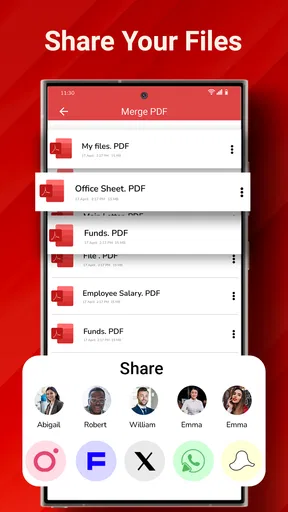
Speaking of sharing, the app integrates seamlessly with popular platforms like Google Drive, Dropbox, and OneDrive, making it a cinch to store and share your files. You can also send PDFs directly through messaging apps, which is perfect for on-the-go sharing.
Choosing the right tool for the job
Compared with using a phone’s built-in gallery or file manager, a dedicated converter is more convenient when I need several pictures collected into one ordered document with a consistent page size. The gallery is fine for sending a single image quickly, but it is less suited to presenting multiple pages as one file. A desktop PDF editor gives more room for careful layout work, while this app is better for quick preparation when I already have the pictures on my phone.
I would not use it as my only solution for every document. If I need searchable text, precise page cleanup, or a formal scanning workflow, a scanner or PDF editor designed around those tasks may be a better fit. Image-based PDFs are still pictures placed on pages, so selecting a format that supports a variety of images does not by itself make the text searchable. For ordinary sharing and visual records, though, that distinction may not matter.
A useful habit is to make a small sample before processing a batch. Choose one representative image, set the paper size and quality, then inspect the output on screen. If the text is too small or the file feels unnecessarily large, adjust before repeating the process for the rest. This is especially helpful with mixed material, such as a close-up receipt beside a full-page form, because one setting may not suit every image equally well.
Who will get the most from it
I can see this working well for people who regularly receive documents as pictures, students collecting photographed notes, or anyone who wants to keep receipts and forms together. The app is rated for Everyone, and it is free to install, so trying a basic workflow does not require a purchase upfront. It has over half a million installs, which suggests it has found an audience among people looking for this kind of practical phone tool.
It is less compelling if nearly all your documents begin as digital files rather than photos, or if you need advanced page-level editing every day. In that case, a full PDF editor or a scanner app with document-focused cleanup may save extra steps. I would also look elsewhere if a work process requires a particular approval, naming, or filing system; turning images into a PDF is only one part of that workflow.
Costs, compatibility, and a sensible first test
The app is free, but it includes in-app purchase items priced from $4.99 to $49.99 each. I would start by checking whether the free experience covers the task I actually need, rather than assuming that every editing or conversion option will be included without limits. If a paid item appears during use, consider whether it solves a recurring need or merely a one-off inconvenience before spending money.
It was released on May 10, 2023, and the current version is 3.8.3. It requires Android 7.0 or later. Before relying on it for a deadline, I would install it on the device I plan to use, try a couple of representative images, and confirm that the finished file can be opened and shared through my usual route. That small rehearsal answers the practical questions that matter: whether the controls suit me, whether the result is legible, and whether my intended destination works.
Features that Wow
What I love about this app is its versatility. You’re not just limited to JPEGs; it supports a variety of image formats, which is a huge plus. Once you’ve selected your images, the app offers options to adjust the image quality and paper size. It’s like having a mini photo studio in your pocket!
Another standout feature is the ability to add text. You can insert captions or annotations to your heart’s content. The text editing tools are quite robust, allowing you to play with fonts, sizes, and colors. It’s perfect for adding a professional touch to presentations or just jazzing up your personal photo collections.
Performance and Usability
Now, onto performance. I was pleasantly surprised at how efficient this app is. It converts images to PDF in a flash, without any annoying lags. The resulting PDF files retain excellent image quality, which is crucial for any visual content.
Usability-wise, this app scores high. The user interface is straightforward, with every option clearly labeled. Even if you’re not a tech-savvy individual, you’ll find navigating through the app a walk in the park. And the best part? It doesn’t bombard you with ads, a rare gem in today’s app market!
Security and Sharing Options
In today’s digital age, security is paramount. Thankfully, the app provides password protection for your PDFs, giving you peace of mind when handling sensitive documents. You can easily set a password before sharing your PDFs via email or cloud services.
Speaking of sharing, the app integrates seamlessly with popular platforms like Google Drive, Dropbox, and OneDrive, making it a cinch to store and share your files. You can also send PDFs directly through messaging apps, which is perfect for on-the-go sharing.
Final Thoughts
All in all, Image to PDF - PDF Converter is a stellar app that delivers on its promises. Whether you’re looking to organize family photos, compile documents for work, or simply have a penchant for PDFs, this app has got you covered. It’s user-friendly, efficient, and packed with features that cater to both casual users and professionals alike.
So, if you’re like me and enjoy turning chaos into order, give this app a try. It’s a small tool with big potential, and I’m sure it’ll become a staple on your device just as it has on mine. Happy converting!
Verdict
Strengths of Image to PDF - PDF Converter
- Converts images to PDFs quickly.
- Supports multiple image formats.
- Easy-to-use interface.
- Offers batch conversion.
- No internet required for conversion.
Limitations of Image to PDF - PDF Converter
- Limited editing tools.
- Some features are paid.
- Ads can be intrusive.
- No cloud integration.
- Occasional crashes on older devices.
Other Releases by BestAppsHub
View All
QR Code Reader: QR Code Maker
Shopping4.1
Similar Picks in This Category
View All
LinkedIn: Community & Network
LinkedIn3.8

Zoom Workplace
zoom.com4.1

Microsoft Teams
Microsoft Corporation4.6

Meta Business Suite
Meta Platforms, Inc.4.6

Webex Meetings
Cisco Systems, Inc.4.5

TeamViewer Remote Control
TeamViewer4.4
Frequently Asked Questions
What features does Image to PDF - PDF Converter offer?
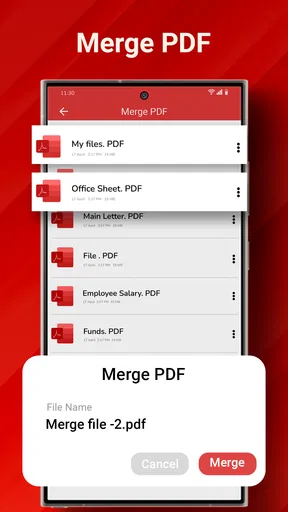
The Image to PDF - PDF Converter app allows users to easily convert images from formats like JPEG, PNG, and BMP into PDF documents. It supports batch conversion, enabling multiple images to be converted at once. Additionally, the app provides options for adjusting the PDF layout, orientation, and margins, ensuring users can customize their documents according to their needs.
Is the Image to PDF - PDF Converter app free to use?
Yes, the Image to PDF - PDF Converter app is free to download and use. However, it may offer in-app purchases or a premium version with additional features such as ad-free usage, enhanced conversion speed, or advanced editing tools. Users can choose to upgrade if they require these enhanced functionalities.
How secure is the conversion process in Image to PDF - PDF Converter?
The app prioritizes user security by ensuring that all conversions are processed locally on the device, meaning no data is uploaded to external servers. This local processing helps protect user privacy and sensitive information. Additionally, the app may support password protection for PDF files to enhance security further.
What are the system requirements for installing Image to PDF - PDF Converter?
The app is compatible with both Android and iOS devices. For Android, it typically requires version 5.0 (Lollipop) or higher. For iOS devices, it generally supports iOS 11.0 or later. Users should ensure they have sufficient storage space on their devices for installation and for handling large PDF files.
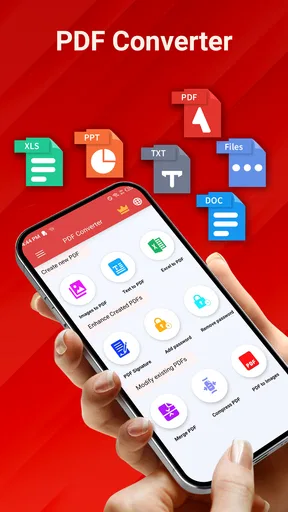
Can the app convert other document types to PDF?
Primarily, the app focuses on converting image files to PDF. However, some versions may offer additional functionality to convert other document types such as Word or Excel files to PDF, depending on the app's version and updates. Users should check the app's latest features for expanded conversion options.
